
Mediamorph
Convert a video without losing quality. It copies what it can, re-encodes only what it must, and shows the size before you start, with ffmpeg inside and nothing sent anywhere.
Mac with Apple siliconFree and open source, GPLReleased, v1.0.0
Install
macOS 12 Monterey or later, on Apple silicon
- 1Open the download and drag Mediamorph into Applications.
- 2Open Mediamorph. macOS says it cannot check it for malware, as it does for any app not signed with a paid Apple developer account. Open System Settings, Privacy & Security, click Open Anyway and confirm. You do this once; updates open without asking.
- 3Drop a video on the window, or click Choose a file.
Get started
1Open a video
Drop it on the window, or click Choose a file. MKV, MP4, MOV, AVI, WebM and most others open, one at a time. Mediamorph reads what is inside and says what it would do.
2Pick what you want
A format, a size, or a preset such as Smaller, looks the same or 720p for phones. Untick the audio and subtitle tracks you do not need.
3See it before you start
The new size shows as you change anything, measured on the file itself. Preview 10 s encodes ten seconds so you can compare them with the original.
4Convert
The result is checked against the original before it gets its real name, next to the original. Show in Finder takes you to it.
What it looks like
On the trailer of Big Buck Bunny, © Blender Foundation, shared under CC BY 3.0.
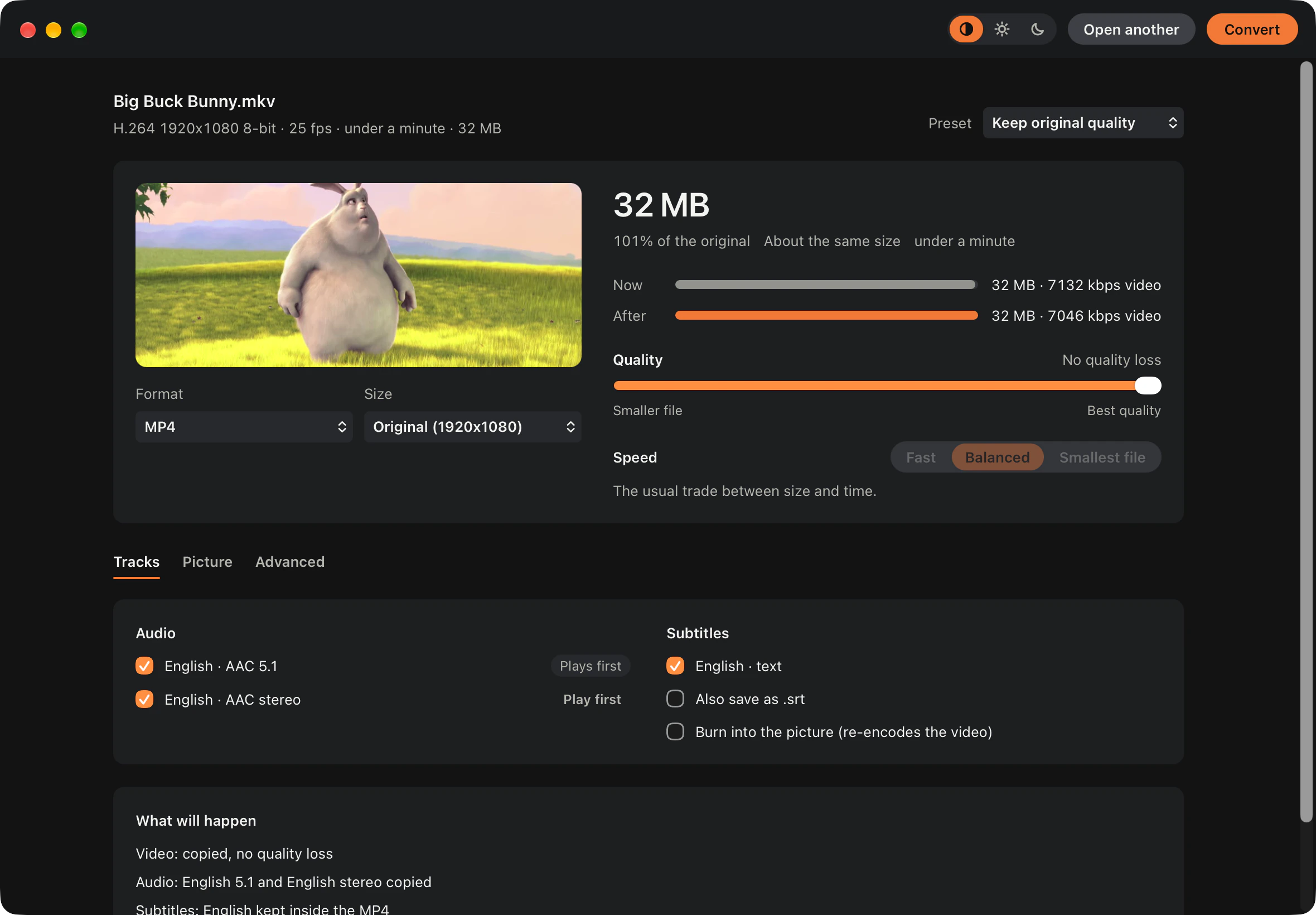
Copies what it can, in seconds
Every track the new format can hold is copied as it is, so moving a film from MKV to MP4 takes seconds and loses nothing. Keep the audio and subtitle tracks you want.
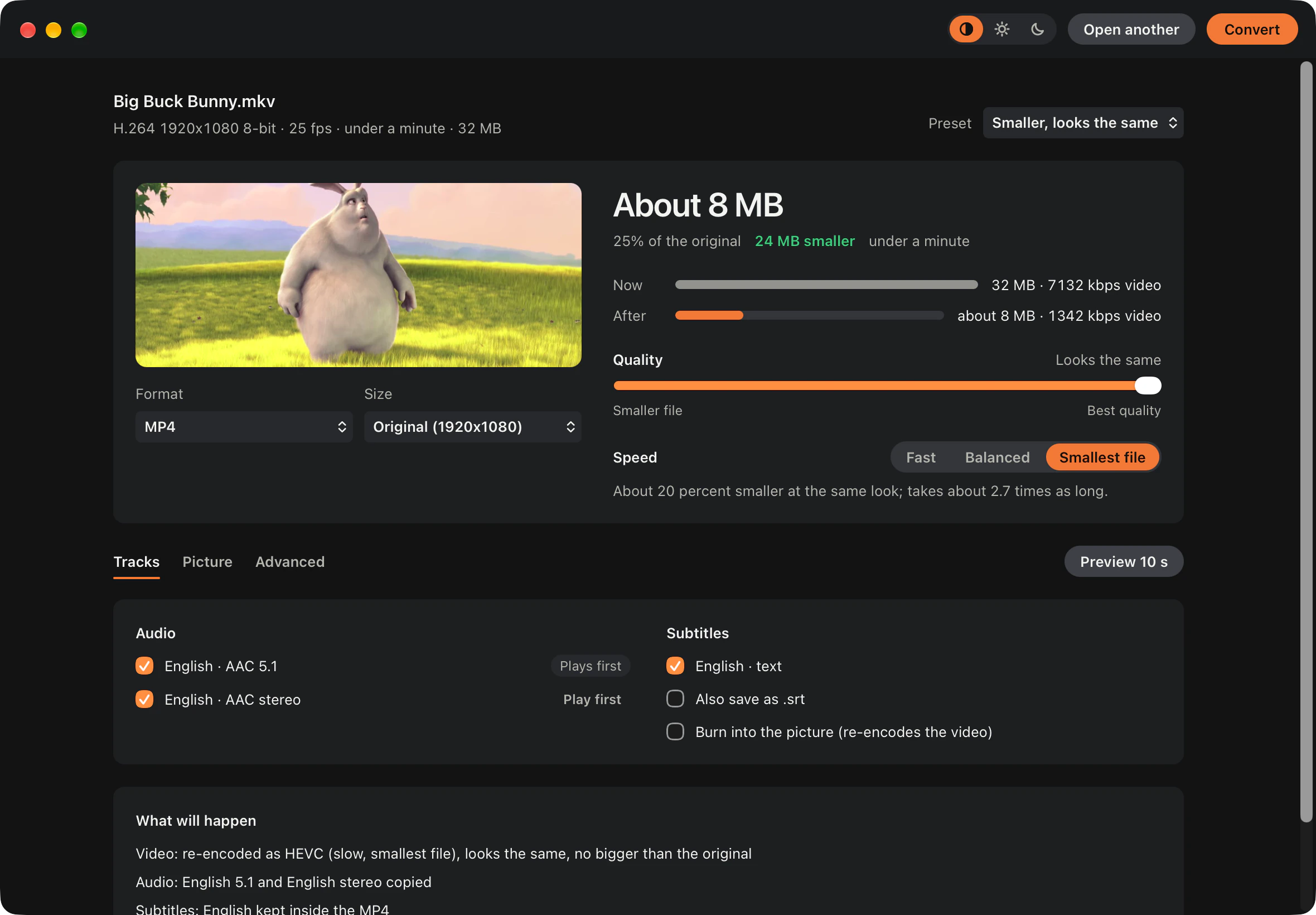
Smaller, and you see the size first
Choose a preset or move the quality slider, and the new size shows as you go. Here a quarter of the original, re-encoded so it looks the same.
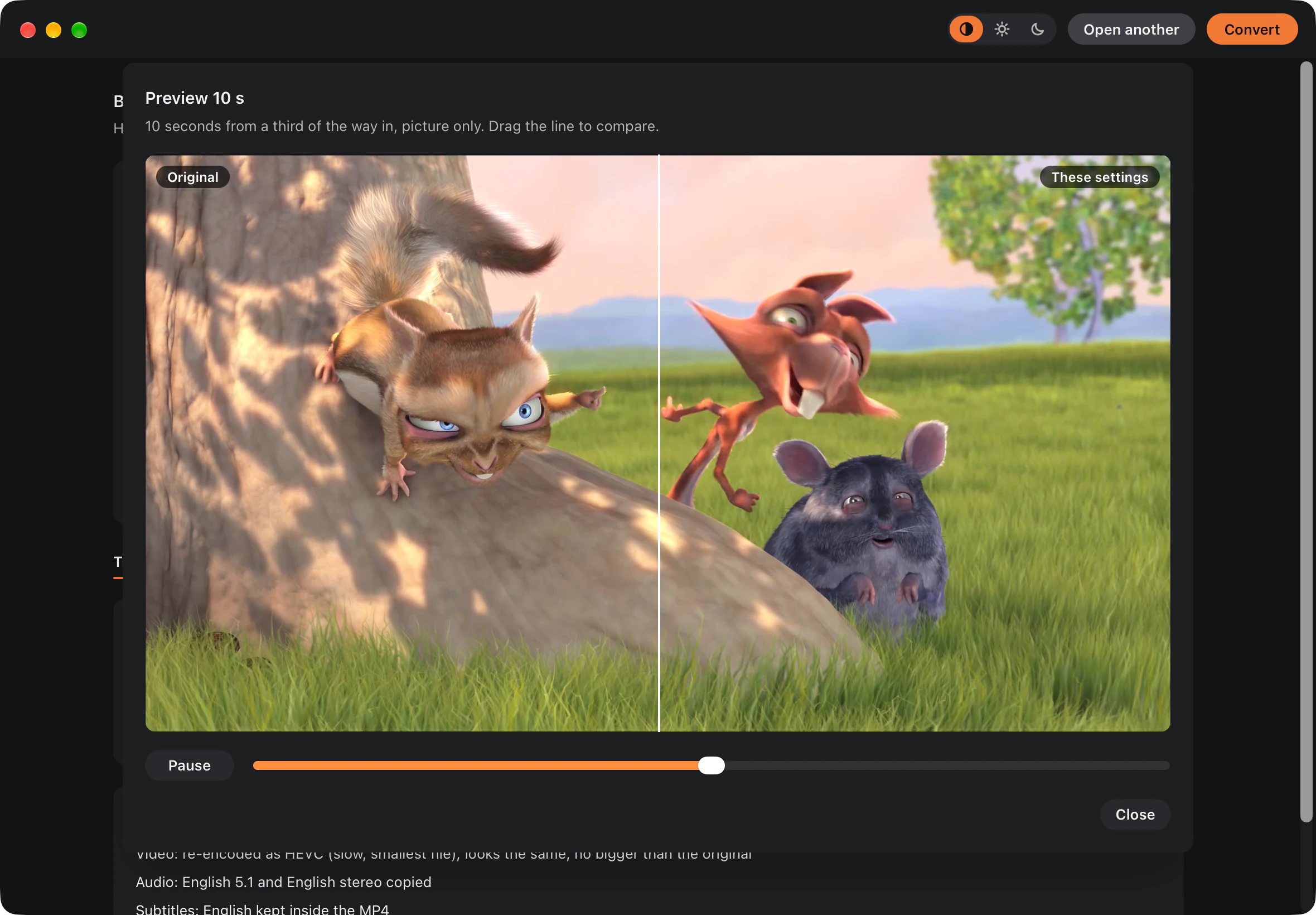
Before and after, side by side
Preview 10 s encodes ten seconds with your settings. Drag the line across to compare them with the original.
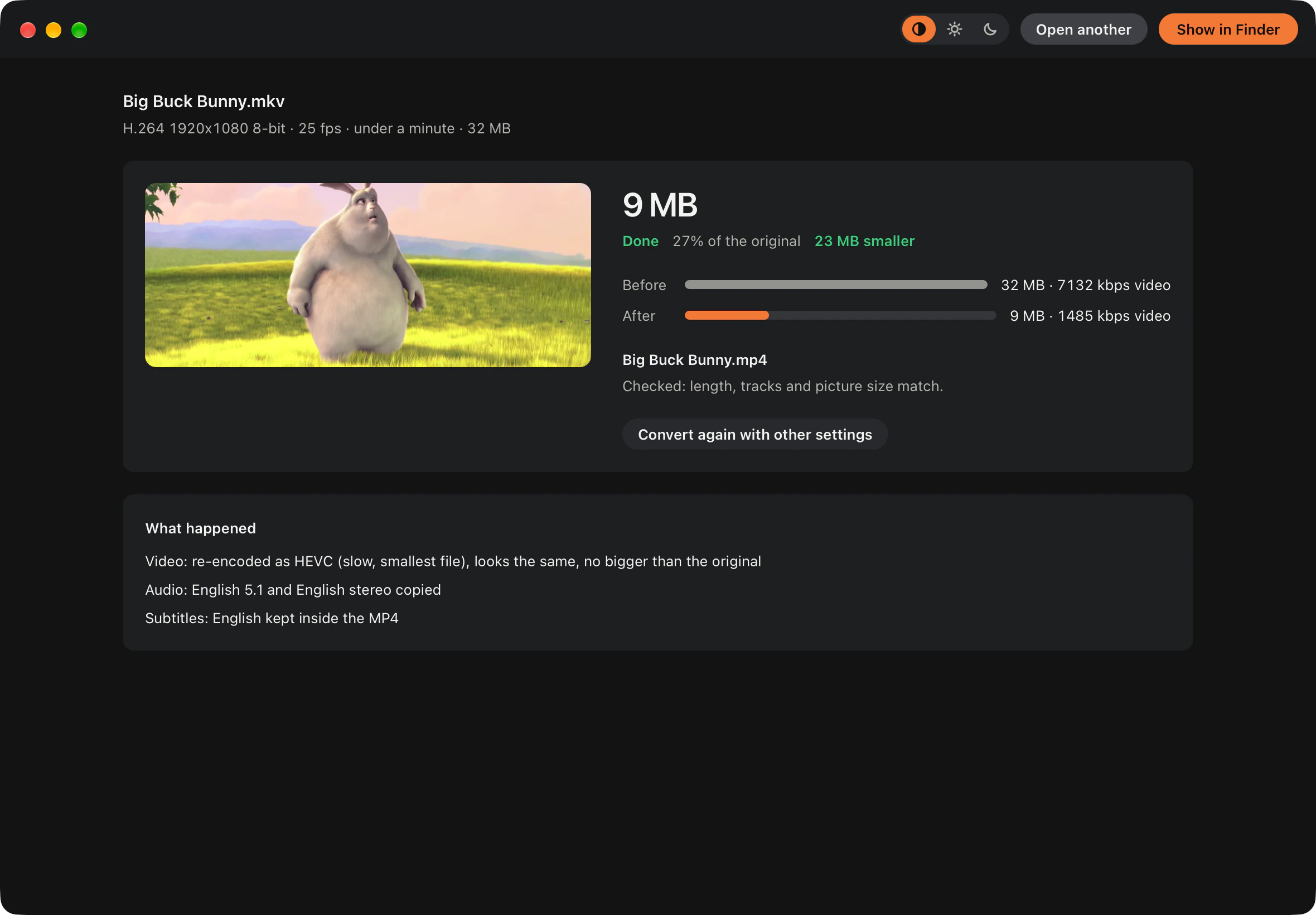
Checked before it is done
The result is checked before it gets its real name: its length, tracks and picture size must match the original. Nothing is ever overwritten.
What it does
Six formats
MP4, MKV, MOV and WebM for video, M4A and MP3 for the sound alone. Each keeps every track it can hold.
Only what has to change is re-encoded
Tracks the new format can hold are copied as they are, which takes seconds and loses nothing. Only a track that must change is re-encoded, and the plan says which before you start.
Never bigger
A re-encode keeps the original codec and never goes above the original bitrate, and size and frame rate only ever go down. Moving the quality slider left always makes the file smaller.
The size before you start
Every change shows the new size, measured on a sample of your file rather than guessed. Speed trades time for size: Smallest file is about 20 percent smaller at the same look.
Audio and subtitles your way
Keep the tracks you want and choose which plays first. Add a stereo track made from 5.1, set a loudness standard for streaming or TV, burn subtitles in, or save them as an .srt file.
Presets
Keep original quality, Smaller, looks the same, 720p for phones, YouTube upload and two TV masters, plus your own, saved from any settings.
What you can rely on
A video is often the only copy, so it matters exactly what Mediamorph does with it.
Your originals are safe
Nothing is ever overwritten. A result is written under a temporary name, checked against the original, and only then given its real one. The original goes to the Trash only if you tick Move the original to the Trash when done.
Nothing leaves your computer
No account, no analytics and no crash reporting, and your videos never leave your Mac. The only request it makes is a weekly check for a new version, with nothing about you in it.
Permissions
Mediamorph needs no permission to start. The first time a conversion finishes, macOS asks whether it may show notifications, so it can tell you when a long one is done, and the first time you open a video on an external drive, macOS asks whether it may read files there. Nothing is collected anywhere: no account and no analytics. The only request Mediamorph makes is a weekly check for a new version, with nothing about you in it.
Questions
- Do I need to install ffmpeg?
- No. ffmpeg, which does the converting, comes inside Mediamorph, with everything it needs, subtitle burn-in included. That is also why the download is about 60 MB.
- macOS says it cannot check Mediamorph for malware. What now?
- Mediamorph is free and not signed with a paid Apple developer account, so macOS asks you to confirm it once. Open System Settings, Privacy & Security, click Open Anyway beside Mediamorph and confirm.
- Does it work on an Intel Mac?
- No. The ffmpeg build inside it is for Apple silicon, and builds for Intel Macs are coming to an end.
- How do I update?
- You do not need to. Once a week Mediamorph checks for a new version, and when there is one it puts it in place as you quit, so the next start is the new version.
- Why is it under the GPL?
- The ffmpeg build inside it is, and Mediamorph shares its licence, so you can read, change and pass on all of it. Where the ffmpeg source lives is in THIRD-PARTY-NOTICES.md in the repository.
- Is there a Windows or Linux version?
- Not yet. Mediamorph is for the Mac first, and Windows and Linux come later.
Something converted wrong, or an idea for it, email me.